Search Console isn’t just for websites anymore
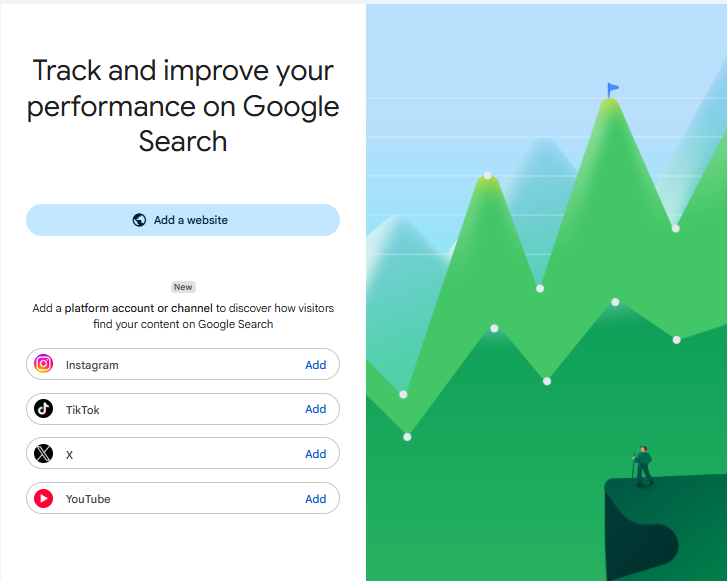
In July 2026, Google rolled out a new property type called platform properties. In plain terms: you can now verify an Instagram, TikTok, X or YouTube account inside Search Console and see how that content performs on Google Search and Discover — which search terms lead people to your posts, how many clicks and impressions they pull, and how your audience interacts with them.
Here’s the part that makes it genuinely new: it’s the first Search Console property you can verify without owning a domain. For years, Search Console meant “you have a website.” Now a creator with nothing but a TikTok account can see their Google search data too.
Your social content was already showing up in Google. Now you can see it.
This is the bit we get quietly excited about, because it closes a gap we’ve moaned about for years. Your Instagram reels, YouTube videos and TikToks have always been able to rank in Google — but you had no clean way to measure it. The data lived in each platform’s own walled garden, and none of them told you what people were searching to find you.
Now you get the search side of the story. If “email marketing tips” is quietly sending people to one of your TikToks, that’s a content signal you can act on — on TikTok and on your site. This is exactly the kind of cross-channel visibility we bang on about: channels stop being separate little dashboards and start telling one story.
Connecting all four: how each platform behaves
Rather than repeat what the docs say, we ran through the whole setup. The good news: it’s quick. The useful news: each platform behaves a little differently, and one of them has a catch worth knowing before you start.
YouTube — the smoothest of the lot
Search Console shows a list of the channels linked to your Google account; pick one and that’s it — “Property added successfully.” A green tick, and a note that it can take up to 48 hours for data to appear. If your channel already lives under your Google login, this is a ten-second job.
Instagram — the one with a catch
This is the gotcha. Try to connect Instagram and Google stops you with “Change to professional account?” — you need a professional (business or creator) Instagram account to connect it. If you’re on a personal account, you’ll have to switch first. Not hard, but it’ll catch you out mid-setup if you don’t know.
TikTok — a quick “Google for Creators” handshake
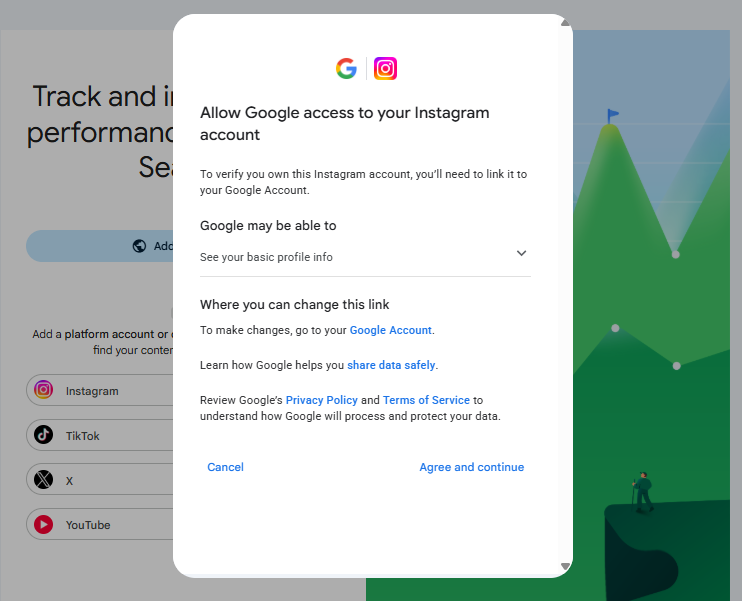
TikTok routes through an app called Google for Creators, which asks to read your profile info — avatar, display name, bio, profile link and verification status. Accept, and it’s added with the same clean property layout as Instagram.
X — same handshake, broader permissions
X also connects via Google for Creators, but read the permissions before you click. It can stay connected until you revoke access, and view all the posts and accounts you can see — including protected ones. Nothing sinister for a public brand account, but worth a conscious yes rather than a reflexive one.
A small habit worth keeping: every one of these connections is an OAuth permission you’re granting to Google, and most stay live until you actively revoke them. Connect the accounts you genuinely want measured — not every account you happen to own — and note where to switch them off later.
What the reports actually show (once data lands)
Set expectations here: the moment you connect, you’ll see “We’re processing your data and gathering insights. Check back within 48 hours.” Every chart starts empty — overall clicks, top content, queries, top countries, all “No data available yet.” That’s normal. Search Console needs a day or two to backfill before anything appears.
Once it does, platform properties give you three views: a Performance report (clicks, impressions and the exact posts and search queries driving them), an Insights report (top content, trending posts, top countries), and Achievements. It’s the same Search-data thinking you know from websites, pointed at your social posts.

Should you bother? Mostly yes — with eyes open.
If you’re a brand or creator putting real effort into social, connect the accounts that matter. It’s free, it’s quick, and the sooner you connect, the sooner the data starts building — there’s no backdating a history you never collected. Even a thin early dataset beats the total blind spot you have today.
Just don’t oversell it to yourself. This is a measurement tool, not a growth strategy. It tells you what’s already happening in Google Search; it doesn’t make it happen. The value shows up when you actually read the queries and let them shape what you post next — which is the boring, unglamorous part where most of the real gains have always lived.
Frequently asked questions
Do I need a website to use this?
No — and that’s the headline. Platform properties are the first Search Console property type you can verify without owning a domain. A social account is enough.
Which platforms are supported?
At launch: Instagram, TikTok, X and YouTube. You connect each one separately, and each becomes its own property in Search Console.
Why won’t my Instagram connect?
You almost certainly need a professional (business or creator) Instagram account. Google blocks the connection on personal accounts — switch to a professional account in Instagram’s settings, then try again.
How long until I see data?
Up to 48 hours. Charts show “No data available yet” until Search Console has processed your first batch. Connect and come back in a couple of days.
Is it free?
Yes. Like the rest of Search Console, platform properties are free. The only cost is the OAuth permissions you grant — so connect deliberately and know where to revoke access later.